This isn't a shameless plug for #214SpiritEG. Well, I guess by default it sort of is; however, I wanted to build off Linda's post from Monday.
District 214 is holding a Twitter Spirit Week in honor of the Centennial this week. They asked each school community to tweet to its specific hashtag all week, and the winning school will get burritos from a local business. This is, I believe, the second year they've run a contest like this. Additionally, they have celebrated #214oneday and #214bday, which were well received by many in and out of the district.
In addition to fun competition between schools, what events like this show are how a classroom, a school, and a district can leverage social media in a positive way. Instead of banning technology and punishing students for using their phones & iPads in class, we can reward them when they are using them responsibly to enhance learning. We can redirect students to create a positive digital culture and an audience for their work beyond the four classroom walls. This has been shown through some of our school's class hashtags like #EGLTS and #FRAPEG--both of which have been blogged about on this site (here and here) and whose digital presences and influences are growing constantly. It is possible to use Twitter and other forms of social media to enhance student learning!
Additionally, Twitter has become an important source of professional development for many educators. For example, I have connected with so many teachers for resources and feedback on our 20% Time Project (#20Time/#GeniousHour). Other teachers find contacts and resources via Twitter chats. No matter what you're looking to work on in your own professional development or classroom content, there is someone out there to easily network with on Twitter. If you'd like to learn more, please leave a comment or stop in to the CollabLab!
Also, go #214SpiritEG!

Friday, February 6, 2015

Thursday, February 5, 2015
How to Create a Schoology Checklist
By: Rachel Barry
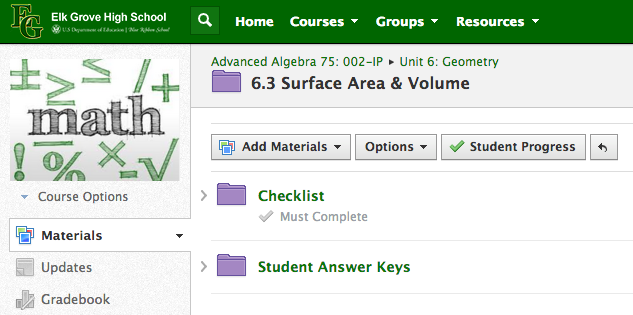


A Schoology Checklist is a great tool to hold students accountable for completing assignments in a designated order. You can use this as an instructional tool for students to complete a warm-up at the beginning of class or to read an article before answering a discussion question. At Elk Grove High School, some of us math teachers have used this tool to foster individualized learning in our classes. Here is a set of step-by-step instructions of how to create a Schoology Checklist. Before you begin, you should convert your documents to .pdfs and have the web addresses ready for any links that you will be posting.
- Create a Folder
It is not necessary to create a separate folder for the Checklist, as it will still work
with other documents in the folder. I have found, however, that it is easier for
students to understand what it is they need to complete when the Checklist is
separate from the rest of the materials of the topic.
2. Upload all Materials
Make sure that any materials (documents, links, discussion questions, quizzes,
etc.) are uploaded in the correct order that you want the students to complete.
3. Create the Checklist!
Click on “Options” and then “Student Completion”. Follow along with the video for
step-by-step directions!
4. Check Students' Progress
Click on "Student Progress" and see each student's percentage of completion.
Click on a student's name and see the individual progress of each student.
Things to Note:
- You cannot copy a Checklist to another course.
It appears that you are able to copy a checklist, however, when the students access the
Checklist, the "Requirements must be completed in order" does not transfer. Students have
access to all items. In order to set up the Checklist again, you must delete all items from the
Checklist and Save. Then, you can recreate the Checklist.
- You see a completion percentage for each student, but they do not see their own.
I have posted on the Schoology Web Platform for this feature to be added to the student app,
as a gameification feature that moves from red to yellow to green based on the percentage of
completion. It has not happened yet, but I am hoping that it is coming in the future!
Wednesday, February 4, 2015
Determining Main Ideas in a Reading Passage
I start my AP World History class
almost every day with a warm up. I
like the routine of starting off class with the students diving right into
content and thinking. Also, they
know what to do at the beginning of class, which helps them start right away. Before every student had an iPad, I
left the warm ups at the door.
Each student picked the paper up as they entered the room, and the
instructions were always on the sheet.
Now that each student has an iPad, they download it through the LMS I
use, Schoology.
Most of the time the warm up is a
reading that builds background knowledge or addresses an AP theme that is, for
a lack of better way to say it, random.
The warm ups are always short, something they can read or complete in
less than a few minutes. Then they
can share with another student.
Finally, we report out as a class and then I answer any questions the
students might have. The whole process takes from five to ten minutes.
I have a variety of strategies I
use depending on what skill I would like to focus on that day. Also, the variety helps keep the
students interested in doing them almost every day. In this case, I used the
deletion summary reading strategy. I used this strategy because students often have a trouble
determining what is important or not. This is crucial when reading non-fiction material. Furthermore, students will need this
skill in any profession, as they will need to be able to sift through material
quickly and efficiently in almost any profession.
I always give the students a clearly defined purpose when
they read. When using the deletion
summary strategy, students cross out everything that does not answer the question
or is aligned to the purpose. At the end, I have the students summarize the remaining
information.
Seeing what students delete or keep
is very revealing. At first, they either delete or keep everything. It takes several attempts for students
to understand what is important. It takes time to develop that skill when
reading unfamiliar non-fiction material. To help the students, I walk through the process with the
class. After reading each line, I
ask what part of the line is essential or directly related to the objective. Then, we cross out everything we did
not say. As we do this more
frequently, I will have several students share over AppleTV their attempts.

Tuesday, February 3, 2015
Tech Tuesday: Infinite Campus & Weekly Grades
Beginning this week, and as usual, teachers will be asked to post grades weekly between Thursday and Sunday by midnight.
In case you lost track of it, here is the link to the other helpful Infinite Campus Resources created by the District ITF/DTC team. You can also refer to "Campus Community" within Infinite Campus for additional support.
1. Log in to Campus Instruction and click on gradebook on the left side:


In case you lost track of it, here is the link to the other helpful Infinite Campus Resources created by the District ITF/DTC team. You can also refer to "Campus Community" within Infinite Campus for additional support.
1. Log in to Campus Instruction and click on gradebook on the left side:
2. Select a class from the drop down menu
3. Click on Grade Totals to expand all of the windows:
4. Click the Word POST above Grade in the In Progress section:
5. Select the correct Semester and select Elig for Task:
6. Click OK - you will see a message that says your grades will be posted upons Save:
7. Click the SAVE button next to Settings:
8. You will see a message confirming that your grade book has been saved:
9. You will then see grades in the Posted section of Eligibility:
10. Click the dropdown menu to go back to your gradebook for the Semester:
NOTE: The Posted Grades column will be cleared weekly. You will know if you have
completed eligibility each week when you see grades filled in to that section.
As always, if you have any questions, feel free to stop by the Collab Lab!
Monday, February 2, 2015
Enhancing Learning with Social Media
Posted by Linda Ashida (@Ashida_Linda)
 I have become increasingly interested in the impact that Social Media tools can have on teaching and learning. Many students still see Facebook, Twitter or Instagram simply as a means of social communication, without realizing that it can be a powerful learning tool. I am reminded of this when I visit colleagues' classes, in my role as Innovative Technology Facilitator, to teach lessons on Digital Leadership or Digital Presence. Students are often amazed and excited to learn about the opportunities social media can give them to share their work, receive feedback from authentic audiences, network, and extend their learning beyond the classroom. For example, after doing these lessons for students in our Leadership Through Service course, they began to regularly post on Twitter using their class hashtag #EGLTS. They were encouraged by the responses, feedback, retweets, or even by having their blog posts republished. These students quickly began to see the impact of social media on their learning and leadership.
For my own curation of content, I regularly use both Scoop.It and Diigo. Just today on Scoop.It, I came across this interesting article "Tools for Teaching and Learning."by Leila Meyer, via @ICTPHMS. Check it out! It gives examples of how to use six social media tools, including the aforementioned Diigo, Pinterest, and Scoop.It. It also shares ideas for using Voice Thread, Instagram and Feedly. Though they are examples are from college courses, they still apply to other levels of education.
Do you have examples of how Social Media has impacted teaching and learning for you and your students? Please share! Comment below!
In my work with teachers and students, I am also reminded about the challenge we all face with organizing all of the digital content that we come across every day. Haven't you ever thought to yourself, "I know I read that online somewhere, and I saved it somewhere . . . " but you just cannot remember where? Curation of digital content is an important 21st century skill for us and for our students, and it is greatly facilitated by social media tools such as Diigo, Pinterest, and Scoop.It. Just do a Google search on a topic related to your teaching and include the word "Pinterest" in the search: You will find a wealth of great curated resources by other educators. If you are like me, from the examples of others, you will find yourself intrigued by the possibilities of using Pinterest to curate resources and have your students do the same.
Do you have examples of how Social Media has impacted teaching and learning for you and your students? Please share! Comment below!
Friday, January 30, 2015
Lesson Sharing & School Culture
By Kim Miklusak
One of the things I like most about the school culture at EG is our willingness to share lesson ideas and instructional techniques with each other. I've done two lessons this week that were introduced to me by my peers.
One of the things I like most about the school culture at EG is our willingness to share lesson ideas and instructional techniques with each other. I've done two lessons this week that were introduced to me by my peers.
 The
first was a QR code pre-reading activity that was originally done at our
Freshman First Days event at the start of the school year. I then observed Bonnie Kale use it with her freshmen as a preview to reading Shakepeare; it was so well received by her students that other members of her freshmen team started using it as well! Many members of our American Literature team are now using that idea
this week to preview the concept of race and conflicts surrounding race
in the US today as we begin preparing to read Huck Finn. What was great about this activity was that it was self-paced but still skills-centered and incorporated current events and conflicts via articles and videos.
The
first was a QR code pre-reading activity that was originally done at our
Freshman First Days event at the start of the school year. I then observed Bonnie Kale use it with her freshmen as a preview to reading Shakepeare; it was so well received by her students that other members of her freshmen team started using it as well! Many members of our American Literature team are now using that idea
this week to preview the concept of race and conflicts surrounding race
in the US today as we begin preparing to read Huck Finn. What was great about this activity was that it was self-paced but still skills-centered and incorporated current events and conflicts via articles and videos. The second idea is the gamification of grammar practice, an idea long championed by Rita Sayre. Today I did brackets to make a head-to-head competition. Students worked by themselves or with a peer. Each English grammar passage was a round. The students put the number of correct answers plus an answer explanation as a tie breaker. Even if they were kicked out in the first round they kept playing because the team with the next highest total came back in for the final round! The students really got into it--even students who normally wouldn't be as interested in grammar. Another great way to do this would be through Kahoot!
Thursday, January 29, 2015
Individualized Learning in Mathematics
By: Rachel Barry & Colleen Mullaney
Six years ago, the Math department at EGHS did away with textbooks. We math teachers started from scratch, writing our own digital curriculum based on the ACT College Readiness Standards. The curricula are based on a tiered model, with each skill broken down into four levels: review, focus in isolation, focus in context, and extension. A sample skill is shown here:
CRS Skill
|
Description
| |
Level 1
|
GRE 403
|
Determine slope from a graph, from two points, or from an equation in slope-intercept form.
|
Level 2
|
GRE 502
GRE 503
|
Graph a line from slope-intercept, point-slope, and standard form and I can determine the equation of a line from a graph
|
Level 3
|
GRE 502
GRE 503
|
Write an equation of a line in point-slope or slope intercept form when given two points, or the slope and a point.
|
Level 4
|
GRE 604
|
Write an equation of a line parallel or perpendicular to another line through a given point
|
With the addition of iPads, teachers can create video notes--using apps like Educreations or Explain Everything--that allow students to work at their own pace through an objective. Students are not slowed down by others who need more time or not forced to move on to something they are not ready for. Not only do students understand the material on a deeper level, they are now taking control of their own learning. Students have taken more ownership of their work with the self-paced curriculum because it is clear what they know, how well they know it, and at what level they understand it. The increase in formative assessment, through online quizzes, provides students with constant feedback and allows them to reflect on their understanding of the material.
Another benefit to this individualized learning process is the increase in diagonal movement of our students into higher level math courses. There are more students moving from the regular level to the honors level, as well as from the preparatory level to the regular level. When working at their own pace, motivated students are able to cover more topics than typically designated to a specific course. Therefore, by the end of the school year, these students have learned sometimes 7-10 new topics that bridge them into the higher level curriculum. This not only provides them with more opportunities in the future but also saves them time and money on a Summer School bridge class.
The increase in technology has made all of this possible. Prior to the use of iPads, we would print out these documents on paper. Now with our 1:1 iPad Pilots, we are better able to differentiate the curriculum through the use of the Schoology Checklist. The checklist function guides the students through the curriculum. Students must complete one task in order to have access to the next, throughout the entire checklist.
A detailed “How-To” on the Schoology Checklist will be brought to you in next Wednesday’s blog post!
Subscribe to:
Posts (Atom)