Showing posts with label infinite campus. Show all posts

Wednesday, January 17, 2018

Back to Basics: Connecting with Parents/Guardians in the New Semester

By Kim Miklusak 

For many schools the new semester is upon us or rapidly approaching.  For some this means all new classes; for others it means possibly some new students.  Either way it makes me think about the importance of connecting with parents and guardians throughout the year--not just during the opening days.

It's easy to get bogged down with the hustle of the new semester.  At the beginning of the year, we make our agendas and materials available to students through our LMS or by other means.  We may hand out syllabi or send home welcome letters.  But what do we do mid-year?  Do we make regular contact with parents/guardians just to keep everyone up-to-date?

One parent's perspective: 
Although we may not always hear back from parents, or we may be frustrated if we receive "Undeliverable" emails, many parents do receive the message and are grateful for it!  One parent, who has a current senior student and one graduated student from our school, responded:

"I truly appreciate communication from the teachers through Infinite Campus.  Even though my daughter was very organized and very few assignments were completed last minute, I felt it was beneficial for us knowing about the big projects or reports coming due so we had an idea of the stresses she would be under and to encourage her to make the right choice when other social opportunities arose that would take time away from working on her assignments.   I realize she should be responsible for her work, but it helps parent encourage and teach their children how to time manage."

One teacher's perspective: 
In order to reach out to parents and guardians of students who are missing assignments--and to reach out again to remind students of their own work--Psychology teacher Melissa Curtis uses the "Message Center" screen on Infinite Campus to send form emails to students, parents, and guardians two weeks before the end of the quarter to fill everyone in on missing work!

Once she has the template saved, it is easy for her to send out messages to students who have any assignments that are marked as missing in the grade book.  The automated email fills in the blanks below with the students' names, the names of missing assignments, and directs them to the portal for more information!

If any teachers would like more information on sending out templated emails like this one, be sure to contact us, and we can show you how and connect you with other teachers who are doing the same!   Or if you have other ways you reach out to parents and guardians throughout the year, leave us a comment below!
Thursday, December 1, 2016

Effective Communication in the Gradebook - Part 1 (Math)

Seventh post in a series from our staff-led Institute Day.  This will be a two-part blog post, with the first post reflecting on the math component, while the second post focuses on the science component and the teacher take-aways from the session.

Rachel Barry (Math) and Quinn Loch (Science) presented this session, which focused on these two questions:
     1.  How can I show formative feedback in the gradebook?
     2.  How can I communicate progress in the gradebook?

MATH

To begin, it is important to note that these ideas and implementations are constantly evolving.  I am constantly discussing alternatives with my colleagues to determine what is the best way of giving feedback and communicating a student's progress.  I am in my seventh year of teaching, and I have yet to maintain the same grading system and gradebook set-up in two consecutive years.

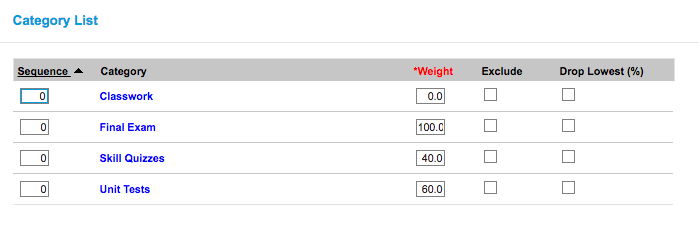
- Formative Feedback is reported in the gradebook using a 0% Category.
All grades not on a summative quiz or unit test go in the 0% category. This helps students and parents see progress, without affecting a students grade.
Screenshot 2016-10-24 14.43.25.png
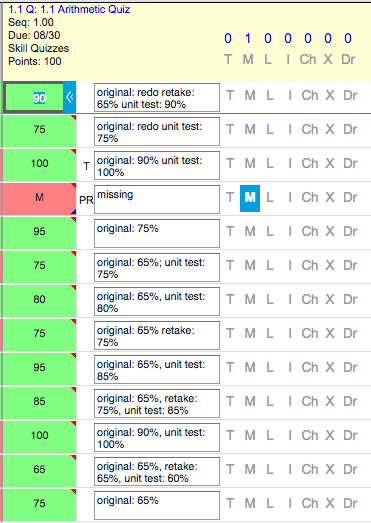
- Use comments in Infinite Campus to display student progress on a math standard.
Shows multiple attempts on same math standard.

Teacher View:

Screenshot 2016-10-24 14.46.42.png

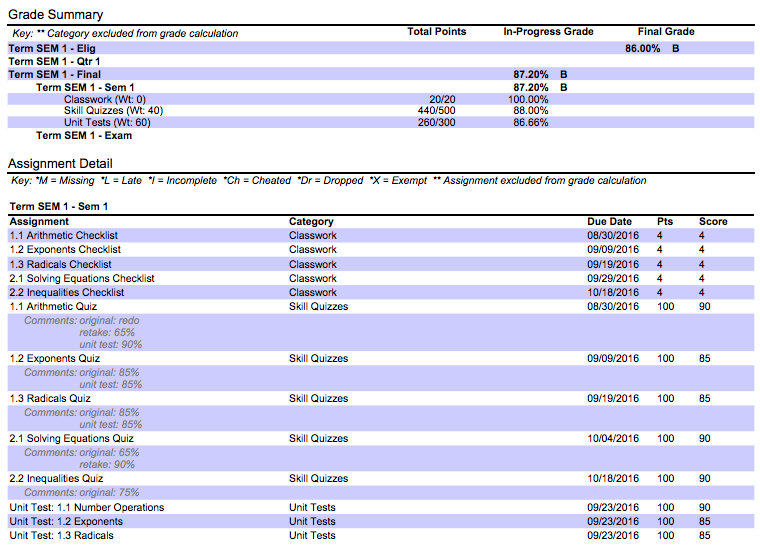
Student View:
Screenshot 2016-10-24 14.49.38.png

- Students reflect at the end of a unit on their effort and performance.
At the end of each unit, students reflect on their effort and performance using the Reflection document below.  The Checklist grades are in the formative category of the gradebook, while the quizzes and unit tests are both summative categories.  They log in to Infinite Campus to fill this out themselves.  Then, they answer the following two questions on the back:
1.  What are you most proud of from this unit?
2.  What are you going to change to improve in the next unit?


The purpose of this document is for students to realize that if they complete the work in class (through a Schoology Checklist), they will be successful on the quiz.  Also, if they go through the reassessment process, they better their performance on topic.  Most of the time, when they have completed a retake, they also score better later on the unit test.  


Check in tomorrow for Part 2, focusing in Science!
Friday, January 15, 2016

Final Exam Grades & Submission in Infinite Campus

This blog post is to be used as a reference for creating your final exam/assignment in Infinite Campus, how to finalize your grades, and how to generate reports to save for your records. We would like to thank the D214 ITF team (Linda Ashida, Dawn Bodden, Matt Hamilton, Rebecca Kinnee, Gabriella Stetz-Jackson, and Jeff Vlk) for compiling these resources!

1. Creating Your Final Exam Assignment and Entering Scores
  • Log in to Campus Instruction and click on Grade book on the left side:
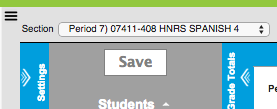
  • Select a class from the drop down menu:
JHHS HD:Users:gabriella.stetz:Desktop:Screen Shot 2014-11-24 at 2.23.36 PM.png
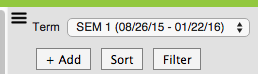
  • Click +Add to add your final exam assignment:
Screen Shot 2016-01-04 at 10.33.05 AM.png
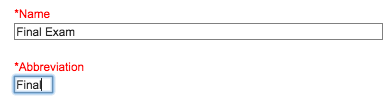
  • Enter the name and abbreviation as usual:
Screen Shot 2015-05-07 at 2.05.11 PM.png
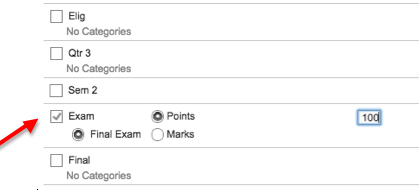
  • For the grading task, select Exam and enter the total points possible:
Screen Shot 2015-05-07 at 2.08.56 PM.png
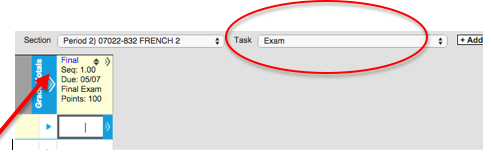
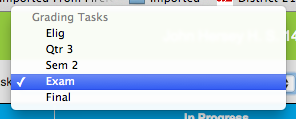
  • IMPORTANT: Once you create your assignment, you will not see it in the same window as all of your Sem 1 assignments. You must select Exam from the dropdown to see the assignment and enter scores:
Screen Shot 2015-05-07 at 2.12.13 PM.png
  • If you have multiple parts to your final exam, follow these directions for each part you need to enter (click +Add, add the assignment and select Exam for the grading task to enter the points possible).
  • After you have created  your assignment, fill in the grades for the assignment.  

Then:

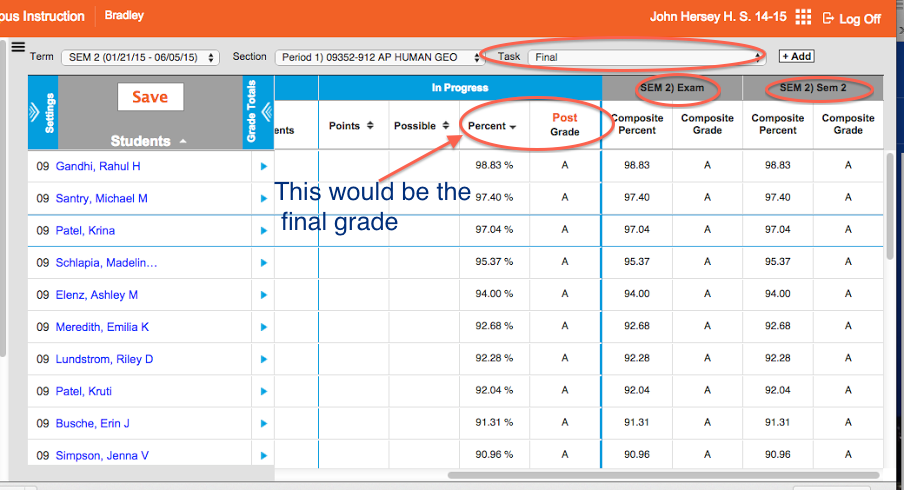
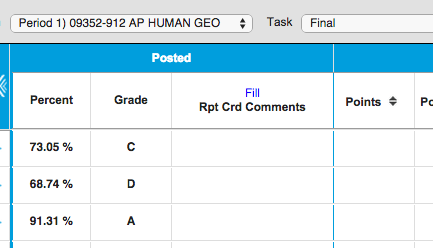
Go to the Final task and check to see that the grades are the way that you want them.  In this screen, you will be able to see the posted Final Grade, the Sem 1 Exam grade, and the Sem 1 Sem 1 grade.  If you need to override or adjust any grades, you will need to do this in each individual task.  


You will receive directions soon on SUBMITTING end of year grades and running end of year reports!

2. Submitting Semester Grades
Remember that these steps need to be completed for each and every class.
  • Log in to Campus Instruction and click on gradebook on the left side:
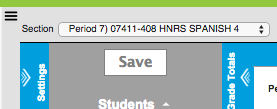
  • Select a class from the drop down menu:
JHHS HD:Users:gabriella.stetz:Desktop:Screen Shot 2014-11-24 at 2.23.36 PM.png
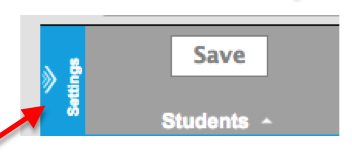
  • Click on Settings to expand the window:
Screen Shot 2015-03-19 at 8.58.12 AM.png
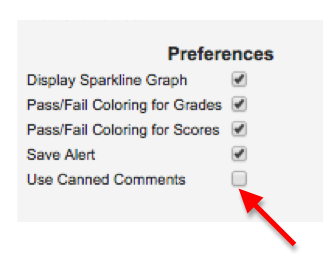
  • Under the Preferences menu, select Use Canned Comments and click SAVE (THIS STEP WILL NEED TO BE DONE FOR EACH SECTION YOU TEACH):
Screen Shot 2015-03-19 at 8.57.20 AM.png
You may have already done this at the beginning of the semester. Please see sheet included in email with all of the canned comments you can use!

COMPLETING SEMESTER GRADES INVOLVES THREE STEPS:

  1. Post to Sem 1 Sem 1 (this is the grade BEFORE the final exam is factored in)
  2. Post to Sem 1 EXAM (this is the final exam grade)
  3. Post to Sem 1 FINAL (this is the final transcripted grade - made up of the Sem 1 grade and the EXAM grade)

STEP 1--Post your Sem 1 grades!
  • Be sure you have your Sem 1 Sem 1 gradebook selected where all of your grades have been populating:
Screen Shot 2016-01-04 at 10.43.32 AM.png

  • Click the POST button above the word Grade in the In Progress section:
Screen Shot 2015-03-19 at 9.03.17 AM.png
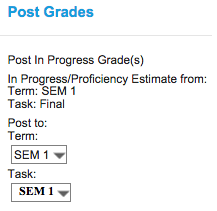
  • In the Post Grades window, select Sem 1 for Term and Sem 1 for Task.
Screen Shot 2016-01-04 at 11.09.00 AM.png
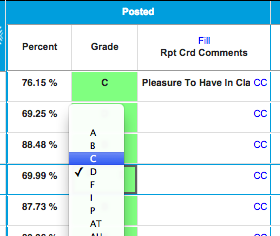
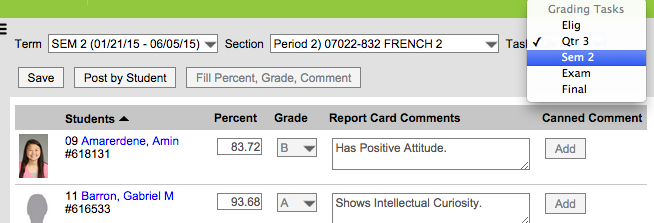
  • Once you are taken to the Sem 1 window you will see your posted grades. Here you can review the grades and make any necessary changes/overrides:
Screen Shot 2015-03-19 at 9.27.16 AM.png

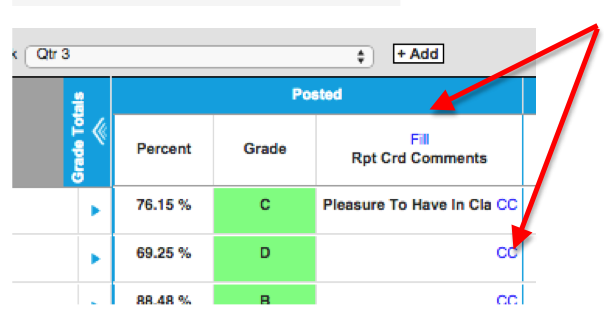
  • In this same window, you will also see options to either FILL in your own comments, or use CC for Canned Comments:
Screen Shot 2015-03-19 at 9.10.35 AM.png

Note: For consistency sake, we are going to put all of our comments HERE, not in the final grade section. This way, the comments will populate all in the same place for the students.

  • Click on CC to select canned comments - check the boxes next to the comments you wish to select and then click Add Comments (YOU CAN SELECT UP TO TWO COMMENTS)

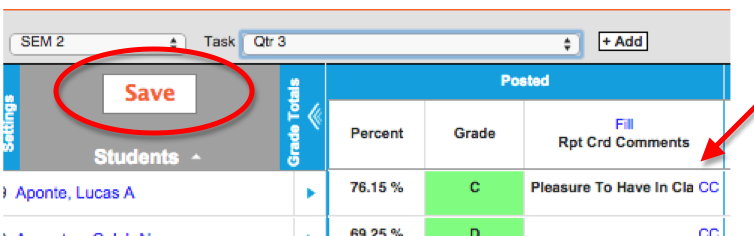
  • You will see the comments you select filled in next to the students names and grades. Click Save when you are finished!
Screen Shot 2015-03-19 at 9.17.19 AM.png

STEP 1--Post your Exam grades!
  • You now need to submit your final exam grade. Be sure you have your Sem 1 Exam gradebook selected. When you open this grade book, if you put in your final exam assignment correctly, you will see your final exam grades here.
Screen Shot 2016-01-04 at 10.45.54 AM.png

  • Click the POST button above the word Grade in the In Progress section:
Screen Shot 2015-03-19 at 9.03.17 AM.png

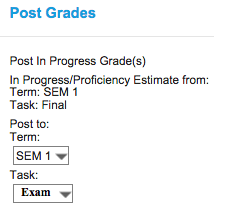
  • In the Post Grades window, select Sem 1 for Term and Exam for Task.
Screen Shot 2016-01-04 at 11.07.25 AM.png
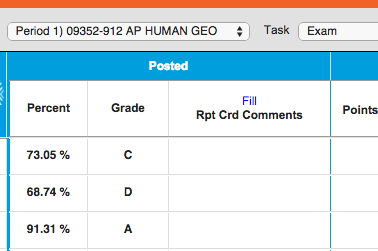
  • Once you are taken to the Exam window you will see your posted grades. Here you can review the grades and make any necessary changes/overrides:
Screen Shot 2015-05-19 at 9.42.24 AM.png

  • Click Save when you are finished!
Screen Shot 2015-03-19 at 9.17.19 AM.png

STEP 3--Post your Final grades!
  • You now need to submit your final grade that is transcripted. Be sure you have your Sem 1 Final gradebook selected. When you open this grade book, the grades that populate there will be the calculation of your Sem 1 grade and your Final Exam grade based on your grade calc options set-up.
Screen Shot 2016-01-04 at 10.47.13 AM.png

  • Click the POST button above the word Grade in the In Progress section:
Screen Shot 2015-03-19 at 9.03.17 AM.png

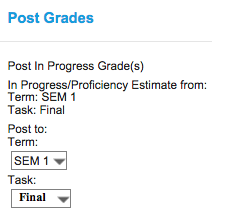
  • In the Post Grades window, select Sem 1 for Term and Final for Task.
Screen Shot 2016-01-04 at 11.08.20 AM.png
  • Once you are taken to the Final window you will see your posted grades. Here you can review the grades and make any necessary changes/overrides:
Screen Shot 2015-05-19 at 9.42.54 AM.png
  • Click Save when you are finished!
Screen Shot 2015-03-19 at 9.17.19 AM.png
To submit your NEXT class, switch classes and be sure to GO BACK TO THE START OF THESE DIRECTIONS AND FOLLOW ALL STEPS.

TO CHECK YOUR WORK:
You can go back to each class and confirm that you have successfully posted grades. Just like when you post your eligibility, you can see that grades have posted because the posted section will be populated.
Click on the dropdown menu and select the Grading Task you want to check:
Screen Shot 2015-05-13 at 11.02.39 AM.png
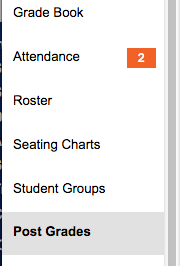
ALSO, you can select Post Grades from the navigation on the left side and see what you have posted for each grading task:
Screen Shot 2015-05-13 at 11.05.08 AM.pngScreen Shot 2015-05-13 at 11.03.12 AM.png

3. Generating End of Year Reports
Please generate BOTH of these reports AFTER YOU HAVE FINALIZED GRADES for all of your classes and save them to PDF for your records!

STUDENT SUMMARY REPORT:  In order to see the breakdown for semester, final exam and final grades, you can generate a Student Summary Report:
  • Log in to Campus Instruction and click on Reports (Gradebook) on the left side:
Screen Shot 2015-05-08 at 1.36.46 PM.png
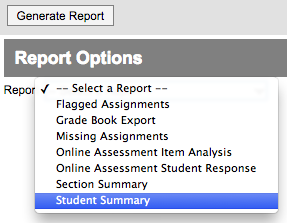
  • Select Student Summary from the drop down menu:
Screen Shot 2015-05-08 at 1.37.22 PM.png
  • Go through the checkboxes and make your selections. Then click Generate when you are ready:
Screen Shot 2015-05-08 at 1.45.11 PM.png
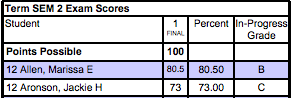
  • You will see a report that displays the grade summary for each student:
Screen Shot 2015-06-02 at 6.59.42 AM.png

SECTION SUMMARY REPORT: In order to see a report of all assignments, abbreviations and scores, you can generate a Section Summary Report:
  • Log in to Campus Instruction and click on Reports (Gradebook) on the left side:
Screen Shot 2015-05-08 at 1.36.46 PM.png
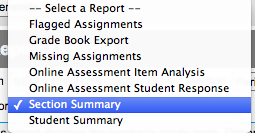
  • Select Section Summary from the drop down menu:
Screen Shot 2015-05-08 at 2.49.19 PM.png
  • Go through the checkboxes and make your selections. Then click Generate when you are ready:
Screen Shot 2015-05-08 at 1.45.11 PM.png
  • This report will be several pages long and will show you the following:
    • A log of your assignments and their abbreviations
Screen Shot 2015-06-02 at 7.03.36 AM.png
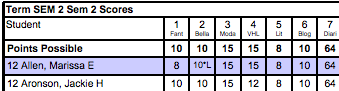
    • Scores on all assignments for all students
Screen Shot 2015-06-02 at 7.03.59 AM.png
    • Your Exam assignment(s) and scores for each student
Screen Shot 2015-06-02 at 7.04.27 AM.png
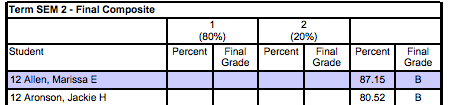
    • Your final composite score for the semester for each student
Screen Shot 2015-06-02 at 7.05.35 AM.png