Showing posts with label 1:1. Show all posts

Wednesday, February 24, 2016

Enhancing Language Learning with 1:1 Technology


Written by Linda Ashida

An invitation to present at the Winter Conference for AATSP (The American Association of Teachers of Spanish and Portuguese) gave my colleagues Carmen Ruiz, Chris Cirrincione, and me a professional learning opportunity to reflect on, and share, ways that we engage students in language learning with 1:1 technology.

In our presentation we shared strategies that impact student learning by:
  • Personalizing instruction
  • Improving feedback
  • Increasing Collaboration
  • Connecting with Authentic Resources
  • Expanding Learning Beyond Classroom Walls 
While our examples related specifically to World Language classes -  developing interpretive, interpersonal and presentational communication skills - the activities can be easily adapted to any content area.

Some examples of strategies we shared:
  • Give all students a voice with backchannel activities using TodaysMeet or Twitter.
Today's meet is quick and easy to set up!  It takes just a minute!


  • Give real time formative feedback with ClassKick or GoFormative .
Embed audio and video links for formative listening practice / feedback

  • Encourage collaboration with Google Docs and Schoology Media Albums.
Crowd source resources and learning collaboratively! Divide class into groups.  Each group becomes an expert on a text, audio or video source and fills in Google Doc with main point, key details and key vocabulary!

Students upload infographics related to AP themes. Practice creating questions for their infographic.  Engage in paired speaking activities.  Share written comments for peer review.

  • Practice listening comprehension skills with Play Post It or EdPuzzle (Shout out to our Prospect High School colleagues Teri Buczinsky, Ryan Schultz, and Mike Aldworth for sharing their example!)
Embed questions in videos for comprehension checks to build listening comprehension of authentic resources!

  •  Engage students with Authentic Resources with SpanishListening.org, AudioLingua and more!
Search for native speaker samples by level,  topic, gender and country!

  • Expand learning beyond classroom walls with Google Earth, Virtual Field Trips and Skype.
 Transport yourself around the world with Google Earth or Virtual Field Trips. Try a Mystery Skype!  Connect with another class and guess where they are from.


To learn more about these and other examples we shared, check out this link to our presentation slides.

Do you have other strategies that work?  Please share!

Would you like to learn more about any of the strategies from our presentation?  Please connect with us in the Collab Lab!  
ing Beyond the Classroom walls

Tuesday, February 23, 2016

Teaming on Tuesdays: Next Steps with Schoology

By The CollabLab Team
 
Today during our Teaming on Tuesdays series, we had the opportunity to see multiple teachers using Schoology in a variety of ways. If you missed this Teaming on Tuesday, read on to see what we learned, and check out this previous post, Schoology Resource Bonanza, for helpful resources.

Our Teaming on Tuesday format once again gave teachers the opportunity to visit a classroom for ten minutes to see strategies in action, and then follow up in the Collab Lab to continue to share ideas and examples to apply to our own classes. However, today for the first time, we invited students to join us for our class-visits and follow-up Learning Labs.  Each period,1-2 student tutors from the Mastery Lab joined us. We learned so much from the perspective of the students!

During periods 1 and 5, we watched French students in Kirsten Fletcher's classes upload pictures to a Schoology Media album, then engage in impromptu discussions based on those pictures. This activity allowed for some student choice and creativity while at the same time curating resources for later use.

Sandra Lee and Katie Winstead were gracious enough to pause their independent reading and have students engage in a Schoology discussion about what they like and dislike about Schoology. It was interesting to hear their perspective on how some of their teachers use the technology.  It was a good reminder that technology alone does not foster learning. It depends on how it is used.

In Quinn Loch's AP Environmental Science class, students began with a Schoology agenda, clicked on a link to a video, and completed a formative Schoology quiz. Students also gave us feedback on how their teachers use Schoology.

Carmen Ruiz-Bergman's classes showed us the benefits of a clear course set-up, as well as using the event feature to share the day's agenda.  Students like seeing what is expected of them that day, when upcoming assignments will be due, and being able to go back to look at things they missed if they were absent.


Just a few of the many takeaways from the day:
  • Students report that they like having an agenda (calendar event) posted so they can follow along in class, make up work when absent, or check to see what homework is due.  Some students also liked how teachers post the handout for the day on the agenda as well.
  • Students like the organization of Schoology. They like being able to find documents easily and not having to carry papers to class.  They suggest teachers take a look at how they name documents to help make things easier to find!
  • Students do like when teachers post reminders via Updates.
  • Students only really look at comments and feedback if they have notifications turned on. More would look at them if teachers gave a few minutes in class to do this. Also, comments show up in different places in Schoology depending on whether an assignment is graded or not.
  •  Students really appreciate getting immediate feedback via Schoology and having the opportunity to do practice quizzes before summative tests. They like when teachers give feedback on free response quizzes and discussions.

  • Students would like Schoology to add a private message feature so they could message their teachers directly from the app.
Look for more blogs about these topics again in the future! 

Thanks to the following staff members who took time out of their busy day to join us: Effie Kalkounos, Matt Smolka (intern), Cassie Yoon, Jon Wong, Sue Montemayor, Sharon Horwath, Matt Bohnenkamp, Katie Kalmes, Sandra Lee, Elyse Hoffman (Wheeling High School), Cliff Darnall, Dean Burrier-Sanchis, and Kristina Lopez (student teacher).

Thanks also to our incredible Mastery Lab tutors who gave us the student perspective on Schoology: Irene Tijerin, Katelyn Eul, Sam Ivers, Gabby Vazquez, Hana Crnovrsania, Emily Gable, Justin Ethithira, Tiffany Waldrom, Niki Tingas, Breanna Keenly, Sejal Vora, and Ray Salarzano.

Tuesday, January 12, 2016

Interactive vocab review

by Kirsten Fletcher

I heard some great ideas this week from my colleagues about creative ways to review vocabulary.

Mindy Perkins - APUSH
Mindy Perkins was looking for a quick way to review vocabulary in AP US History without creating a mountain of little vocabulary flashcards. Here's what she came up with.

She created 2 grids of vocabulary that will be on the final exam. Students seated in groups of 4. They were seated across from their partner and next to their opponent. The opponents shared an iPad and opened one of the vocabulary grids in Notability. Their partners opened the other grid on their iPad. Person A from Team 1 started by giving a clue for one of the vocabulary terms on their grid. If their partner guessed the term correctly, they colored in the word in their chosen color. If not, Person A from Team 2 gave a clue. They continued until someone guessed the word. Then Person B from each team gave clues. At the end, they simply counted up the number of boxes in their color to determine who won.

Student B game board


Mindy said that as they played, the students were engaged, excited, and on task. Since it was a student-led game, she had the time to correct definitions and clarify terms as she walked around. When the game was finished, she had students pull out their vocabulary lists and highlight any words that their group struggled to define. This allowed students to reflect on their learning in order to study more efficiently for the assessment.


Cliff Darnall - Japanese
I saw Cliff Darnall cutting apart cards with pictures for a vocabulary game that he plays, and he graciously invited me to observe his class in action. Cliff credits this idea to the 2012 ACTFL Teacher of the Year, Mr. Yo Azama of North Salinas High School in California.

The purpose of this activity is to have students using new vocabulary in context so they practice grammar structures while learning new vocabulary. To start, Cliff has students practice a model sentence that he projects on the screen.


Then, he divides his students into small groups. Each student has a vocabulary card with a picture or clue on one side and the vocabulary word on the other. The students stand in a circle holding their cards so the picture / clue is facing out and they can see the word.

Vocabulary card
At the beginning of the activity, the teacher sets a timer for 30 seconds. One student starts by reading the model sentence and substituting in their own vocabulary word, then the word of another student. For example, the sentence might read "I like Geography, but I don't understand Chemistry". The second student then says the sentence with their word first and another student's word. The conversation continues around the circle until the timer rings. The student who is still talking when the timer goes off is out. For the next turn, the timer is shorter (maybe 20 seconds) and so on until there is one winner left.

As I observed Cliff's class doing this activity, he modified it slightly for his students. Since he had extra cards he asked the student who was "out" to pick up a new vocab card and continue practicing. This particular class was not overly competitive, so they responded well to this change. Also, after a few minutes, he had groups swap cards so that they practiced more vocabulary. When he did this, he switched the prompt also.

For World Languages, this activity has a lot of advantages. Not only are students learning new vocabulary, but they are repeating sentence structures (without the boredom that sometimes accompanies rote repetition) and they are constantly practicing pronunciation and interpersonal speaking skills. Hot Potato is very guided. To use this in other subject areas, a teacher may have to adapt the activity to include definitions or sentence starters.

Check out how engaged Cliff's students are during this Hot Potato Vocab Activity !

Wednesday, November 11, 2015

Classroom Set-up

By Kim Miklusak

I've been thinking lately about classroom design and instructional technology space: white board walls, multiple projectors, maker spaces, etc.  For example, now with 1:1 instruction and Apple TV, there is no reason for my desk to be at the front of the room.  There is no need to be tethered to a projector.  And there is no need for my students to sit in any traditional set-up.  Right now my AP English classes are set up in 6 pods of 4-5 desk, so they can collaborate.  My American Literature class is a modified U-shape, so all students can communicate with each other.

Out of curiosity today I asked my students "How should we arrange the desks in order to maximize your learning in this class."  The diversity of their answers says a lot about how they think they learn best and makes me think I need to rephrase my question based on what I think my purpose is for class.  The answers fell into three major categories: 1) some variation of rows, 2) some variation of a U-shape, and 3) some variation of pods. 


None of that is surprising.  But what did surprise me was how evenly split their answers were.  When I asked them why, they each had a reason for their design and even suggested other teachers who have a similar set-up.  They were surprised to hear that I may try out one or two of their designs (shown above).  I think too often we still arrange our classrooms the way they have always been arranged.  With 1:1 instruction, I think we need to ask ourselves the purpose of our classes and the purpose of our instruction and analyze our design (given the constraints of our space, of course) to maximize learning.

Tuesday, November 3, 2015

ThinkCERCA


This past Thursday, several teachers from our special education department sat in a ThinkCERCA training to learn ways to incorporate explicit instruction in writing in a variety of class: both Strategies for Learning, English and content area classes.

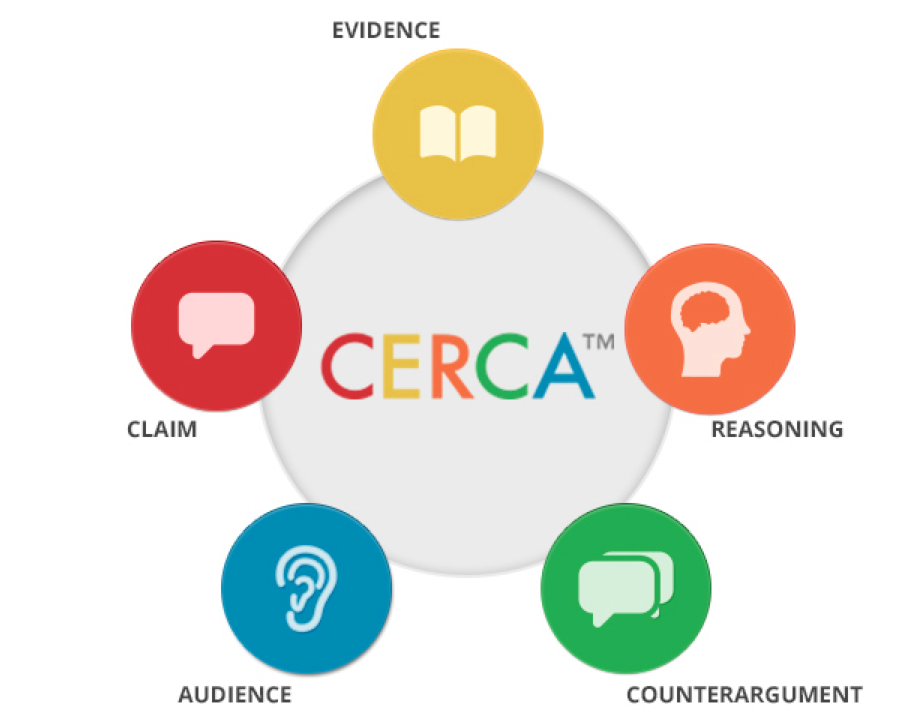
I had the privilege to work with ThinkCERCA last year in my Strategies for Learning class. Using ThinkCERCA, I was able to break down the writing process and help students have an organized argument. What does ThinkCERCA stand for?


Our class did a pre-assessment writing about the following prompt:
What type of learner are you? Use evidence from the text to support your claim about why this learning style is best for you.
After reading an article, I asked the students to write a paragraph-long argument. This is what I got from one student after prompting her to go back and look in the article for examples, etc:
I'm a visual learner. I agree with those things about how I like to read.
We spent about two weeks going over the process of ThinkCERCA and how we can build strong arguments. We spent a day on claims: we looked at claims, analyzed claims, wrote claims and then looked at each other's claims. After going through each part, I had them go back to the original prompt.

This is what I got after two weeks of using ThinkCERCA:
I learn best by visualizing my school work because if I see examples on what I have to do I get it right away by examples and visuals.  The article states "if your a visual learner, you take in informations best by reading." In school I learned vocabulary words by studying. The article also states a true fact, "you get impatient when listening to someone giving an explanation. You just want to read it yourself." When my teachers use to help me with work and they explain it in a difficult way when I can't understand, I want to try and learn it myself. The author says, "kinetic learners might enjoy measuring and mixing." It doesn't apply me because I don't understand how to do it. In conclusion, I am a visual learner.
I went through a training last year, and then another one today. I was pleasantly surprised to see that ThinkCERCA had a bunch of improvements! Some of the highlights:

  • Scaffolded Text: In every part of ThinkCERCA there are mini-lessons and texts available for all grade levels 3-12. No more digging through the internet to find articles that connect to differentiate for the diverse learners in your classroom!
  • CERCA Starters: An easy way to start the learning process of ThinkCERCA. These are the starting points to teach all of the important skills: Why We Make Arguments, Summary, Claim, Evidence, Reasoning, Counterargument, Audience. Each CERCA Starter comes with a mini-lesson and a corresponding QuickCERCA (article and multiple-choice questions) to get a baseline on how much the student understands that concept.
  • More CERCA Sets with Thematic Unit PlanningCERCA Sets have an entire unit planned out for you: you have an overarching question, suggested mini-lesson, and applied lessons (which are articles/writing at various grade levels 3-12).
  • Assign by Reading Level: When you create your class, you assign students a reading level. When you assign an applied lesson, you can have it automatically assign the article that corresponds to their reading needs! This makes differentiating a breeze.
  • QuickCERCAs Guide Lessons: When students read an article and answer the 5 comprehension questions, the data is directly linked to each part of CERCA. A quick 20minute QuickCERCA can then guide you as to which part of CERCA you need to go over.


For more information, check out the ThinkCERCA Blog.

Tuesday, October 20, 2015

Increasing Engagement & Feedback with TurnItIn.Com

By Jackie Randall and Kristen Guth

World Literature and Composition utilizes Turnitin.com more than simply an authenticity resource.  The sophomore English teachers take advantage of the site’s ability to prevent plagiarism, engage students, manage assignments and collaboration, and deliver rich feedback.  For the recent Memoir assignment, students submitted their first drafts to Turnitin.com.  With this submission, students received almost instant grammar corrections.  In addition, the sophomore team created comments that directly correlated with the rubric for the assignment.  By sharing both the comments and rubric within the team, all students receive consistent feedback across the grade level.  Each comment can be tied to the customizable rubric allowing for students to check the mastery of skills during the drafting process.


In the student example above, the purple bubbles are grammatical errors. The blue bubbles are the teacher comments, both canned comments (saved in the comment library on the right of the screen) and original comments found in the blue speech bubbles.
When the student hovers over the comment, the explanation or rule appears.  This is also where the evaluator can connect the comment to a criterion on the rubric.


Students have access to the complete rubric and how their comments correlate to the criterion. 

Through this process, students can receive rich feedback specific to their paper and assignment while in the drafting process.  Teachers can take advantage of utilizing canned comments (seriously, how many times do you write the same thing on every student’s draft?!) and grading through the website or iPad instead of hauling home piles of students’ drafts.  PLTs can share comments and rubrics to make team wide grading efficient and consistent. I’d say that’s a win-win-win! #turnitinforwhat

Wednesday, October 7, 2015

The Collab Lab Resource Hub

Written by Linda Ashida

The Collab Lab Resource Hub is the website that serves to document the myriad professional learning experiences at Elk Grove High School, and to curate resources to facilitate future learning.


We invite you to explore check out the Resource Hub.  Among other things you will find: 
Information about our Teacher-led Institute Days.
•Resources to impact learning in 1:1 classrooms.  Under the "Resources" tab you will find helpful links on Notability, Schoology, and more! Many of the resources have been contributed by staff at EG or other District 214 Schools.
Information about our Elk Grove Lead Learners Team 
Information about our Peer Observation Groups

The Collab Lab Resource Hub is a work in progress, so some pages are more developed than others, but they still serve to as one important way, in addition to using social media (this blog and Twitter) to document and share our professional learning journey and curate resources to multiply our learning.

How do you document and curate resources from your own or your school's professional learning? Please share your examples!

We always look forward to receiving feedback, suggestions, or resources you have to share.

Leave us a comment or come see us in the Collab Lab!


Friday, September 25, 2015

Schoology Checklists as Formative Assessment

By Kim Miklusak

Schoology checklists are not new on this blog: you can read more on how different subjects have used them here!  This year, Matt Snow & I are using them to differentiate instruction and provide immediate feedback for students at the AP level.

The sequence goes like this: Students take a pre-reading quiz on vocabulary from the text, using context clues and roots to determine the meaning of 5 words.  They have 3 opportunities to take the quiz in order to get 100.  This will then unlock the text, which students will annotate and submit, receiving quick feedback on a 4-point scale.  They then take a 10-question comprehension quiz, participate in a discussion in which they write a sample thesis (again using a 4-point scale).  Finally they are able to unlock the AP writing/analysis assignment, which targets individual writing skills.  None of these steps is graded!  They are the foundational skills required to reach higher level understanding, so students receive self-, peer-, and teacher-provided formative feedback before moving on. 
This example is not set up as a checklist because we are modelling it for students first.
The next assignment will be a linear checklist feature.
We have multiple goals for this set-up: 1) we hope to catch each student where s/he needs the most support, 2) we hope to provide immediate feedback on targeted skills, and 3) we hope to allow students who do not need as much support the opportunity to push themselves farther than they may have been able to in a traditional classroom set-up.

In pre-1:1 years, I had students fill out an excel print out, noting what score they received on the 4-point scale for each writing skill [more information on that can be found here].  But now with Schoology, if I can mark assignments as "graded" even if they are formative, I am able to see a running tally of how each student scored on each individual writing skill.  Now not only do students get quicker, targeted feedback on individual skills, but they can see their own development over time, thus making revisions and conferencing more effective and efficient.

This screen shot is set to display our "writing" rubrics/skills.
I can also change the view to "reading" or grammar rubrics/skills
You'll see in the sample above that there are some things I need to work out: for example, how to label each assignment.  Nevertheless, I'm excited to work with these features for this upcoming year!

Monday, August 31, 2015

Using Mini-Rubrics to Provide Feedback in Schoology

By Kim Miklusak

I'm excited to use rubrics in Schoology this year.  As I mentioned on my other blog [shameless plug], I'm looking forward to working with mini-lessons on skill-specific assignments that target what each student needs to be successful in larger reading and writing assignments.

The tricky thing on Schoology is where and how to set up the rubrics.  There are many websites and videos for setting up and using them.  If you're looking to start small, I recommend setting up a few generic ones.  For example, I have one set up for "journals."  I'm not grading all of my discussions in our actual gradebook, but I do want to provide students with targeted feedback on the depth of their responses to encourage them to give enough detail to explain their point of view.

Discussion topic & rubric
Grading view of a discussion on web browser
Grading view of a discussion on Schoology app

There are pluses and minuses to grading on the app vs. website.  The website allows you to clearly see which students' submissions have been graded, but it takes 4 clicks to finally submit the rubric.  The app is much quicker, a really nice interface, but it's hard to see which submissions have been graded--not a problem if you just move down the list and check every student, though.

Grading assignments with the Schoology rubric is so smooth on both the app and website.  This will be so helpful in giving immediate and detailed feedback to students on specific skills.

Grading view of an assignment on Schoology app

Please share ways you have used skill-specific rubrics in the comments below.  And please stop down to the CollabLab if you are interested in setting these up or would like to discuss more ways to use them in class!

Tuesday, August 25, 2015

100% 1:1! Multiplying Learning for All: How We Make It Happen.

by Linda Ashida

At the start of this 2015-16 school year Elk Grove High School, and all District 214 schools, will transition to a 100% 1:1 learning environment.  Every student will have an iPad!

Access and Opportunity for All!
In a full 1:1 mobile learning environment we have a tremendous opportunity to transform learning for all students and staff. Today's Institute Day gave us the opportunity to share the ways we collaborate to do just that:


1) Strong Instructional and Technology support teams - with clearly defined and communicated roles:


2)  Teacher-led professional learning facilitated by our Collab Lab team.
We provide daily opportunities for personalized, differentiated and job-embedded professional learning. Our goal is to explore all of the ways that we can connect, learn and share our learning within and across disciplines.


3) Curate and share examples of our work to multiply our learning.
We do that via our Collab Lab Resource Hub, which includes our Collab Blog with daily posts by staff and students, our Twitter feed, and our shared professional learning calendar.


We also encourage staff to connect, learn and share via Twitter.  To facilitate the connection of Elk Grove staff with each other we use an Elk Grove Twitter List.  Staff can subscribe to the list and easily follow all of their colleagues and school clubs and sports.  For more on using Twitter lists for professional learning, check out this previous Collab Blog post.

Do you have ideas, suggestions, or resources to share?  We'd love to hear from you!  Leave us a comment below!


Monday, August 24, 2015

Schoology Calendar to Organize a Course

By Mark Heintz

Schoology allows a variety of ways to organize a course.  I mainly use Schoology calendar events to guide students in my course.  I use the calendar over folders or updates because I structure my course with daily objectives and activities.  Calendars are how I plan, so it makes logical sense to me to use the calendar.

For students, posting all of the contents for the lesson in the daily calendar focuses students right away with an easy to follow routine. At the start of every class, students go the calendar to begin.  In the pictures below, the calendar is shown on the right display on the iPad or web.  If you have upcoming quizzes or assignments, the students are exposed to tasks that need attention.  Daily routines keep students focused and guide behaviors into learning focused activities at the beginning of class.


In the calendar, I can post the objective for the day, step by step instructions, images, videos, worksheets, readings, and web links.  I often post images for my bell ringers.  Students can see the images in color and zoom for further analysis. I post the question right there in the event.  This way I do not have to have a PowerPoint slide cued or write it on the board if I am coming into the class in a hurry. Calendar events allow students to post comments.  I often have the students post their answers to the bell in the comments.  

The calendar is great because it is ONE location for the entire lesson's materials. The students do not have to go to a discussion for a simple warm up or exit slip.  They can respond to other's comments, ask questions or do almost any feature a discussion can except grading.  For quick participation, the calendar is great. There are less transitions for students to get lost in the shuffle.  It maximizes classroom time and allows for total participation.   It is really easy for students to post new comments.  Students can see all comments made.

Also, the calendar houses all of the daily materials.  There is little redirection for students to access any of the daily materials. I teacher regular level freshmen, so I try to minimize transitions.  Another benefit is the students can go back to the event for any of the daily activities. If you are using pdfs, the event can have the links that students wouldn't be able to click.

At the end of the class, the calendar provides the opportunity for teachers to have an unplanned exit slip.  If there is extra time, you can have students post three things they learned, a question they have,  a summary of the lesson, or anything else you normally do as an exit slip.  The best part, if you created the event, there is a venue for students to post comments without creating anything new!

Another great feature of the calendar is it automatically archives the event.  Students can go back to any event in the entire semester.  If they miss a day they can go through the calendar and see everything they missed.


If you want to know more about how to do specific features in calendars, Schoology created a how to page. You can access it by clicking here.

Friday, June 5, 2015

On Making Mistakes & Learning in a 1:1 Classroom

By Kim Miklusak

This has been a year of uncharted territory for many of us.  Although I had worked with iPads and technology prior to this year, it was my first year teaching in a full 1:1 classroom.  I have to say I was nervous--especially working with people who had been in iPad pilot programs for a few years.  I was nervous that people would ask me questions that I may not immediately know the answer to.  I was nervous that I would try things out in my classroom and they wouldn't work.  I was nervous that I would take time to make something only to find a better way to do it later.

And you know what?  All of those things happened.  But because of the general support structure at  EGHS--and throughout the district as a whole--as well as the specific support structure of the CollabLab and my peers, I was able to learn and grow alongside those I was helping--and alongside my students!  I appreciate the willingness to share in our school, and I appreciate the instructional conversations we can have in our departments and across departments.  I've learned as much from teachers in other subjects as I have from teachers in my own!  Additionally I've learned so much from connecting with people on Twitter and at EdCamps.

I know the shift in instructional technology is a big one, and we are all in different places with it.  The mindset at our school is so important: move at a pace that is comfortable for you.  For some that means considering the SAMR model and working first with substitution as we digitize curricula.  For some that means trying out one thing such as doing entrance or exit slips on the iPad each day.  For others that could be doing one project on the iPad.  And still for others that means transforming as many pieces of the curriculum as possible.

The key is always, however, to realize that whatever we do for the first time, we may (we will!) find more effective and efficient ways to do it in the future--especially if we share our successes and missteps with others.  As long as our instructional focus comes first and technology comes second, the technology will be there to enhance as oppose to diminish what we do in our classrooms for our students.

Friday, May 22, 2015

Library Books on Your iPad!

By Kim Miklusak

As a disclaimer, I've only started playing around with the OverDrive App this past week.  There are so many things I'm still discovering, but it's such an easy app, and it will be great for our Summer Reading books (#EGSR2015) and for reading more throughout the year, so I wanted to share!

OverDrive is a free app that allows you to access books, audio books, and videos from your local library.  It's available for iPhone and iPad (as well as other formats).  It's simple to sign up for an account.  Then you just add your local library or libraries.  In our case, when students search Elk Grove High School, our district libraries come up.  You can check out books using your library card number or ID depending on the library.


The books are searchable by level, by topic, by recommendations, etc.  You can even search for more than one category at once to narrow down your choices.  There's also an extensive section for recommendations based on books you like or have read.  Once you find a book, it's as simple as clicking "borrow" and "download."  Then the books are listed on your bookshelf to read whenever you want.  They can be downloaded or read off the web browser.  If your book is on hold, you just click "hold," and you will receive an email telling you when it's available.  Renewal is simple, too!  Either click "renew" when you receive your 3-day notice.  When you are finished, you click "return book," and it disappears from your bookshelf.  The app also tells you how many more days you have left before your book "expires."  No worries about overdue fees!


Do you have any experiences with OverDrive that you can share?  Leave them in the comments below!

Friday, May 15, 2015

Using iPads and Schoology to explore and share poetry

By Kim Miklusak

Our AP students have reached the end of their exams this week.  They have worked so hard all year--but specifically these past two weeks--to reach this point.  To celebrate we are spending two days in class exploring poetry.

We have scattered poetry throughout the year in our AP Lang curriculum.  We spent another day talking about it on Poem in your Pocket Day.  The directions for yesterday were simple: 1) find a poem or poems you like.  2) Post the link or the poem into a Schoology discussion.  3) Give one sentence explaining why your peers would like it.

I couldn't believe where the students took this.  Some gravitated toward poems they knew.  Some went to Button Poetry, a poetry slam site I have shared with them before.  Some students went out into the hallway to gather around an iPad.  Some students spent a very long time working on writing their own very silly but fun haiku.  Some students paired up and shared ear buds.  Some students went to poems in their native language, wondering whether they should translate it on their own or if they should just settle for Google.

(The formatting looks normal on the iPad.  This is the desktop view.)
But just as importantly, some students started calling across the room to each other to watch this poem or that.  They really got into it--even the students who weren't as on task to start.  There was no assessment attached to it.  The value was that students were able to explore and to experience.  And in the end some students maybe started to like poetry or learn that poetry can be more than the may have thought.  And in the best case some students found some poems that said things that they had thought but hadn't heard anyone express so beautifully before.

Today we will start class by spending time looking through the poems posted in the Schoology discussion, watching some of the videos people shared, and commenting on everyone's posts.  Then we will use that as a foundation to read some Emily Dickinson and John Donne!

Friday, May 1, 2015

Timelines Apps & Student Engagement

By Kim Miklusak

Traditionally I have had my AP English Language students create a timeline for the plot of Slaughterhouse-Five.  The book is written out of chronological order as the main character, Billy, is "unstuck" in time.  Students often struggle with this fact; not only do they frequently have difficulty seeing the events in order, but they also have difficulty partnering up events to analyze why Kurt Vonnegut would structure his novel this way.  After the students brainstormed their timelines, we would create one master timeline on the board and use it as a jumping off point for broader discussions and clarifications.

I wanted to try this same technique on the iPad; however, I was debating with myself whether this was simply a matter of substitution of iPad over paper.  I ultimately decided to go ahead with it and see what else I could do with it.  What I ended up finding is that the individual yet public nature of the assignment helped students to more personally connect with the ultimate goals.

On the suggestion of my coworker Kristen Guth, I had my students download the RWT Timeline app.  It is free and very easy to use; I highly recommend it for anyone who wants to work with timelines in class.  Students could organize their timeline by event, add short and long descriptions, and add pictures if they wanted.   It was interesting to hear students work through the timeline with their partners.  They engaged in debates on placement of events, which led to them making individual connections between relationships.

Student sample

In the end I had students upload their timeline into a Schoology Media Album, so everyone in class could review them.  We then shared them on the screen and discussed the differences between one timeline and another.  While I can't claim that it's completely transforming through technology, I'm still happy with the way it turned out and the increase in individual student engagement.

Tuesday, April 28, 2015

Multiply Learning with #EG1to1!

By Kim Miklusak and Linda Ashida

The other day on Twitter someone shared the idea of what if every teacher tweeted one idea or moment from class every day.  Imagine the community building, the collaborative experiences, and the instructional sharing that could go on if each of us could do that!  Think how much we could learn from and be inspired by one another!

As we move to full 1:1 implementation at Elk Grove next year, the Collab Lab is encouraging staff to Tweet resources and examples of learning in their classrooms using the hashtag EG1to1.  The use of the hashtag will allow us to easily search and curate all of these tweets, and we will multiply our opportunities to learn from one another. For example, just today several teachers tweeted out strategies, student samples, and experiences from their classrooms! The use of the hashtag also gives us an opportunity to share and build our connections with parents and communities beyond our school. We're looking forward to continuing to build this momentum for next year.


We enjoy seeing student Tweets, too, about the ways they they are learning with iPads, like this one today from Gillian Guerra. We'll encourage their use of the hashtag EG1to1 as well!