By: Rachel Barry
In case you didn't know, the iOS 9 update (from last year) included a new feature called Split View Multi-tasking. If you would like to learn about the process to open both apps, please read this Gadgets360 article here.
This allows you to open up two apps at once, on one screen. When I had first learned of this, I realized how cool it would be for students to be able to have their calculator app open while solving math problems in Notability. Here is what this looks like:
Very cool! Some students like this, while others still prefer having their TI-84 calculator separate. Regardless, a great feature, especially for when a student forgets his/her calculator.
I was really excited the other day, when I was walking by a student and saw them using this feature in a new way. To give you some background first, our curricula includes formative assessments through Schoology quizzes.
Students have a .pdf version of these formative quizzes, so that they can download the document into Notability and have something to write on to solve the problems. They then have to type their answers into Schoology. This can be cumbersome and time-consuming.
Instead of going through this multi-step process, this student decided to be much more efficient. He used the Split View Multi-tasker feature to pull up Notability while working in tandem with the quiz open in Schoology. Saves students so much time (and doesn't get them distracted!)
Tuesday, November 15, 2016
Monday, November 14, 2016
Creating Community Service Opportunities: Connections to Harper Promise
Fourth post in a series from our staff-led Institute Day.
For a tutorial on how students log their hours, click here.
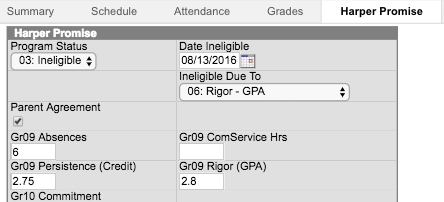
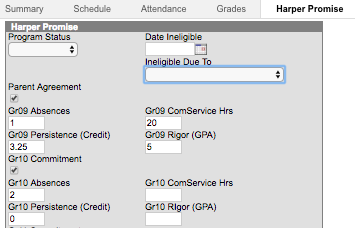
View Eligibility in Infinite Campus
Staff have the ability to see students’ status in Infinite Campus.
In this presentation, Val Norris and Mindy Perkins debuted District 214's new web-based service learning tracking system, X2vol, which is a program that is embedded in the Naviance Program already used by students. They also brainstormed ways to create and communicate service opportunities for students.
Participation in community service and tracking it is required to maintain eligibility to the Harper Promise. This session gave staff a great opportunity to collaborate on the best ways to streamline our communication regarding opportunities for our students to serve their communities.
X2Vol - Naviance Community Service Tracker
Participation in community service and tracking it is required to maintain eligibility to the Harper Promise. This session gave staff a great opportunity to collaborate on the best ways to streamline our communication regarding opportunities for our students to serve their communities.
X2Vol - Naviance Community Service Tracker
X2Vol is a web-based community service tracker that can warehouse all student service hours, for multiple goals. It is housed within Naviance, so students, staff and parents will be familiar with the platform. The system will only be live for Freshmen and Sophomores.
Students can easily:
- Locate and sign up for service opportunities
- Receive reminders
- Track progress against goals
Freshmen need 5 hours
Sophomores need 10 hoursJuniors need 15 hoursSeniors need 20 hours
- Add reflections to their experience
- Connect service activities to their career cluster
Staff:
- Can generate real-time reports and send out reminders
- Can approve, partially-approve or deny hours online
- Will eliminate storage, archival and form requirements
- Can recognize students for their service more frequently
- Eliminate parent phone calls related to service hour progress
Action Plan
- Naviance can upgrade our system overnight and a tab will appear on all students Profile Page.
- Counselors will work with the APSS and APSA to communicate to parents and students
- Harper Promise Committee Teachers can communicate to other teachers:
Christina Barnum Sandy Bisinger
Cindy D’Alessandro Ricky Castro
Linda Ashida Bob Murphy
Becky Jordan Kim Ferraro
Courtney Lavand Mindy Perkins
Erin Ludewig Bob Murphy
Val Norris Chris Rogers
Shae Sohn Jason Spujth
Rita Sayre
View Eligibility in Infinite Campus
Staff have the ability to see students’ status in Infinite Campus.
- Toggle over to Student Information.
- Click on the "Harper Promise" tab.- Ineligible students are marked with the
Friday, November 11, 2016
How Restorative Practices Can Improve Behaviors
Third post in a series from our staff-led Institute Day.
How This Looks At EG:
In his presentation, Justin Penio explained current practices and policies of EGHS and provided teachers with tools to build relationships, manage classrooms, and respond to behavior issues.
Restorative practices changes the mindset of trying to control things to an environment of providing support and encouragement. When we try to maintain control, discipline becomes the focus, which can be limit-setting. Students improve behaviors more often when they are nurtured and given support.
Examples of Questioning:
Restorative practices changes the mindset of trying to control things to an environment of providing support and encouragement. When we try to maintain control, discipline becomes the focus, which can be limit-setting. Students improve behaviors more often when they are nurtured and given support.
Anticipated Outcomes:
- Prioritize relationships, community and repairing harm instead of the need to assign blame and dispense punishment
- Encourages responsibility and accountability
- Create positive school culture, respectful relationships, effective teaching and learning
Examples of Questioning:
- What happened?
- What where you thinking at the time?
- What have you thought about since?
- Who do you think has been affected by what you did?
- What do you need to do to make things right?
- How can we make sure this doesn’t happen again?
- Change the behavior
- Fits with new legislation
- Incorporates best practices in a school community
- Aimed to reduce referrals, suspensions, and expulsions
How This Looks At EG:
- Expanded use of in-school suspension
- MORE COMMUNICATION
- Removal of certain privileges such as:
- Open lunch
- Parking
- Intramurals
- Participation in assemblies
- Computer Labs
- Homecoming events
- Outreach program activities
Teacher Take-Aways:
- Try to avoid power struggles and conflict. These won't help students find motivation to learn.
- It helped to hear/see the Dean perspective on issues that we have with kids. Explaining the methods of support, and the reasons behind them, make the issue come full circle, so the kid can come back to class in a positive manner.
Thursday, November 10, 2016
Travel the World Without Leaving the Classroom!
Second in a series of our staff-led Institute Day blog posts.
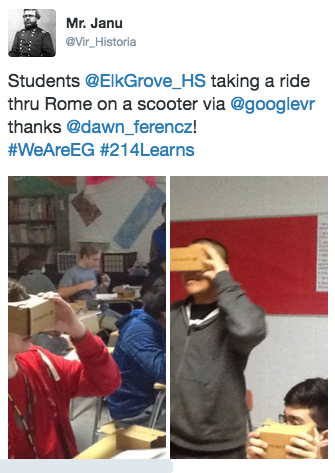
Imagine feeling like you are REALLY climbing a mountain, or REALLY riding a scooter in Rome, but you are just in your classroom using nothing more that a carboard "box" and a cell phone. Thanks to virtual reality, and Dawn Ferencz's Institute Day session, we learned how to connect to the world outside our classrooms with Google Cardboard viewers.
Bruce Janu was inspired and decided to try them out with his classes. (Thank you, Bruce, for sharing your example via Twitter!) Check it out:
How they work:
- Prepare your phone for use by removing the case to allow the google cardboard viewer to close completely.
- Select an app to download or a video to view. See the suggestions below.
- If you are watching a video, make sure to choose the cardboard option before watching the video. This will split the screen in two.
Here is a handy classroom handout to use with your students!
Key Teacher Take-Aways:
- English: using these viewers in small groups in class to share information about South Africa for teaching Power of One.
- Foreign Language: Students can check out cities,museums, etc.
- Human Geography: displaced children, exploring cities, food shortages, etc.
Suggested Apps:
- New York Times VR - Sponsored by The New York Times, this provides current event features as well as historical perspectives and opportunities to take virtual tours. Some content is also provided in Spanish. Additionally, there are print articles.
- Google Cardboard - This is the "official" app for Google Cardboard and provides demo for users to practice standard VR options.
- Within - Uses the VR format to tell stories in various genres
- Expeditions - Created for classroom use, students can take virtual field trips to almost anywhere.
- Street View - This also provides for virtual field trips but also includes user content.
Additional links to resources can be found here.
If EG teachers are interested in seeing these in action, please contact the Collab Lab!
Imagine feeling like you are REALLY climbing a mountain, or REALLY riding a scooter in Rome, but you are just in your classroom using nothing more that a carboard "box" and a cell phone. Thanks to virtual reality, and Dawn Ferencz's Institute Day session, we learned how to connect to the world outside our classrooms with Google Cardboard viewers.
Bruce Janu was inspired and decided to try them out with his classes. (Thank you, Bruce, for sharing your example via Twitter!) Check it out:
How they work:
- Prepare your phone for use by removing the case to allow the google cardboard viewer to close completely.
- Select an app to download or a video to view. See the suggestions below.
- If you are watching a video, make sure to choose the cardboard option before watching the video. This will split the screen in two.
Here is a handy classroom handout to use with your students!
- English: using these viewers in small groups in class to share information about South Africa for teaching Power of One.
- Foreign Language: Students can check out cities,museums, etc.
- Human Geography: displaced children, exploring cities, food shortages, etc.
Suggested Apps:
- New York Times VR - Sponsored by The New York Times, this provides current event features as well as historical perspectives and opportunities to take virtual tours. Some content is also provided in Spanish. Additionally, there are print articles.
- Google Cardboard - This is the "official" app for Google Cardboard and provides demo for users to practice standard VR options.
- Within - Uses the VR format to tell stories in various genres
- Expeditions - Created for classroom use, students can take virtual field trips to almost anywhere.
- Street View - This also provides for virtual field trips but also includes user content.
Additional links to resources can be found here.
If EG teachers are interested in seeing these in action, please contact the Collab Lab!
Wednesday, November 9, 2016
Learning from our Peers! The tradition continues.
by Linda Ashida
There are so many ways we collaborate and learn from our peers. Our October 2016 Institute Day is one great example. But Professional Learning at Elk Grove High School isn't just a one-day-and-it's-over kind of experience. Professional Learning here is ongoing and responsive to the needs and interests of staff.
One example is our tradition of Peer Observation Groups, first started at in 2011. Since the original groups started, we have developed such a culture of ongoing and collaborative professional learning that on any given day staff has the opportunity to visit classrooms of their peers.
Some Peer Observations happen spontaneously, when a teacher drops by the Collab Lab and invites us to stop by her class to see a strategy in action or ask for feedback. Other times a teacher will contact the Collab Lab to ask if we might help arrange a class visit. This happened recently. A colleague expressed interest in visiting classes to see varied learning strategies, so we arranged the first in a series of class visits. Our first was to Mark Heintz' Human Geography class. Several teachers joined in. As a follow-up we will meet with Mark later in the week to discuss some of the strategies we observed related to classroom management, workflow with Schoology, student collaboration, and more.
Other Peer Observation experiences are planned in advance by the Collab Lab, like our Teaming on Tuesdays, in response to feedback from staff related to their needs, interests and learning goals for their students. You can read about some of our Teaming on Tuesdays in previous blog posts. Stay tuned for upcoming Teaming on Tuesday's we will be announcing soon.
In the meantime . . .
There are so many ways we collaborate and learn from our peers. Our October 2016 Institute Day is one great example. But Professional Learning at Elk Grove High School isn't just a one-day-and-it's-over kind of experience. Professional Learning here is ongoing and responsive to the needs and interests of staff.
One example is our tradition of Peer Observation Groups, first started at in 2011. Since the original groups started, we have developed such a culture of ongoing and collaborative professional learning that on any given day staff has the opportunity to visit classrooms of their peers.
Some Peer Observations happen spontaneously, when a teacher drops by the Collab Lab and invites us to stop by her class to see a strategy in action or ask for feedback. Other times a teacher will contact the Collab Lab to ask if we might help arrange a class visit. This happened recently. A colleague expressed interest in visiting classes to see varied learning strategies, so we arranged the first in a series of class visits. Our first was to Mark Heintz' Human Geography class. Several teachers joined in. As a follow-up we will meet with Mark later in the week to discuss some of the strategies we observed related to classroom management, workflow with Schoology, student collaboration, and more.
Other Peer Observation experiences are planned in advance by the Collab Lab, like our Teaming on Tuesdays, in response to feedback from staff related to their needs, interests and learning goals for their students. You can read about some of our Teaming on Tuesdays in previous blog posts. Stay tuned for upcoming Teaming on Tuesday's we will be announcing soon.
In the meantime . . .
- Do you have successful strategies we might see in your classroom?
- Would you like to visit a colleague's classroom to be inspired by student learning in action?
- Do you have feedback related to your own peer observation experiences?
Tuesday, November 8, 2016
Have you seen the 214Ready Blog? Check it out!
By Linda Ashida
Do you want to be inspired by the ways that students are preparing for their future in District 214? We suggest you check out the 214Ready Blog to learn about the many ways that we collaborate with students, parents and the community to insure that students are college, career, and life ready when they graduate.
This week's post is on the Power of the Hashtag, showing how Social Media can multiply our opportunities to showcase learning in action and build connections and community across the district and beyond. Check it out!
And, if you have suggestions for the 214Ready blog please contact Linda Ashida or Jen Delgado.
Do you want to be inspired by the ways that students are preparing for their future in District 214? We suggest you check out the 214Ready Blog to learn about the many ways that we collaborate with students, parents and the community to insure that students are college, career, and life ready when they graduate.
This week's post is on the Power of the Hashtag, showing how Social Media can multiply our opportunities to showcase learning in action and build connections and community across the district and beyond. Check it out!
And, if you have suggestions for the 214Ready blog please contact Linda Ashida or Jen Delgado.
Monday, November 7, 2016
Tech Tips & Tricks
Over the next couple weeks, we will be sharing with you what the EGHS staff presented and learned at our staff-led Institute Day. This is the first in a series of posts.
One of those sessions was presented by Mark Heintz, where he discussed numerous time-saving tips and tricks related to both the MacBook and iPad.
Here is an overview of Mark's tech tips:
1. Extended Desktop
2. Spacebar on the Mac
3. Gestures
5. Screen shots
6. Spaces
7. Online quizzes & what I have learned
8. Google docs & Calendars with Links
9. Screen Recordings with Quicktime
Each D214 laptop has Quicktime. It is a quick way to record your screen, voice, or both!
10. OneTab
Save and re-open all tabs from day to day.
11. Apple Tab and Apple Tilda
One of those sessions was presented by Mark Heintz, where he discussed numerous time-saving tips and tricks related to both the MacBook and iPad.
Here is an overview of Mark's tech tips:
1. Extended Desktop
Allows you to work on your laptop while displaying something else.
This feature allows you to preview a document in Finder, instead of having to load it.
- Two fingers - right click & Three Fingers - drag an item on the desktop
- Four fingers up - see all apps that you have open
- Four fingers over - switch through multiple "desktops"
5. Screen shots
- ⌘ + ⇧ + 3 Capture entire screen + save
- ⌘ + ctrl + ⇧ + 3 Capture entire screen + copy to the clipboard
- ⌘ + ⇧ + 4 Capture dragged area + save (the one I use the most)
- ⌘ + ctrl + ⇧ + 4 Capture dragged area + copy to the clipboard
- ⌘ + ⇧ + 4 then Space Capture a window +save
- ⌘ + ctrl + ⇧ + 4 then Space Capture a window + copy to the clipboard
6. Spaces
- Different classes-different uses
7. Online quizzes & what I have learned
- Review quizzes are the best-hard-time limit
8. Google docs & Calendars with Links
9. Screen Recordings with Quicktime
Each D214 laptop has Quicktime. It is a quick way to record your screen, voice, or both!
10. OneTab
Save and re-open all tabs from day to day.
11. Apple Tab and Apple Tilda
- Command + tab - opens all apps that you have open & Command + q - closes all
Subscribe to:
Posts (Atom)